
The right setting can change the whole story
Give your next video a place of its own. Describe a setting or start with a photo, shape the light and atmosphere, and save a location you can use again in the studio.
Your setting. Your atmosphere.
Create a place that fits your story. Define the location, lighting, and mood, review the generated views, and keep the environment ready for your next studio video.
- Describe a location or bring a reference photo.
- Set the lighting, mood, palette, and visual style before creating it.
- Save wide, eye-level, and detail views. Use Add location to bring the environment into a studio video.
What is an AI environment generator?
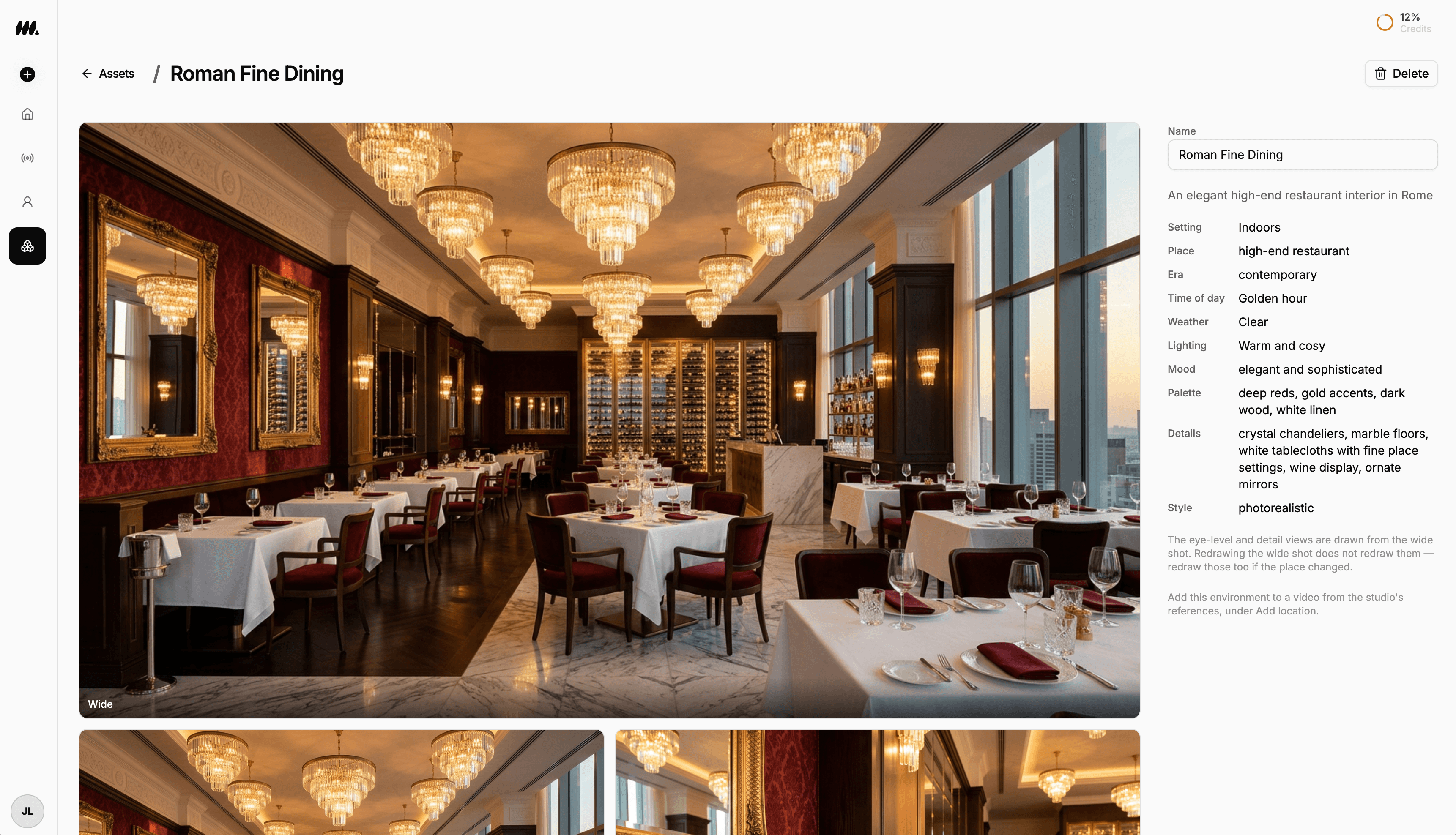
An AI environment generator creates images of a place from a description or reference photo. Moralab lets you define the setting, lighting, mood, palette, and visual style, then generate wide, eye-level, and detail views. Save the environment in your asset library and select it through Add location in the studio to guide the settings of generated video scenes.
Make the details
yours.
Describe a kitchen, gym, restaurant, studio, or outdoor setting. Bring a photo when you want an existing place to guide the environment.
Set the time of day, lighting, weather, mood, and palette during creation. These choices become part of the environment's reference description.
Keep the environment in your asset library. The studio uses its wide and eye-level views as references for scenes set there, alongside saved characters and products.
A setting with a story of its own.
From idea to
finished video.
- 01
Describe the place
Start a new environment in Assets. Describe the location, optionally add a reference photo, or fill in the creation steps yourself.
- 02
Set the atmosphere
Choose an indoor or outdoor setting, time of day, weather, and lighting. Define the mood, palette, details, and visual style before creating it.
- 03
Review and reuse
Review the generated wide, eye-level, and detail views. In a studio video, use Add location to select the saved environment as a scene reference.
Ideas for your next video
Presenter-led social videos
Pair a saved character with a home office, kitchen, or podcast setting in the studio. Build UGC-style concepts around the presenter and place together.
Product scenes
Give a product a setting that supports its story, such as a bathroom, gym, or dining room. Add the product and location as separate studio references.
Recurring video series
Return to a saved location for another episode or concept. Review each generated scene for visual consistency before exporting.
Frequently asked questions
Can I create an AI environment from a photo?
Yes. Add a reference photo when drafting an environment. Review the creation settings before generating the views. Use photographs you have permission to use.
Which environment views does Moralab generate?
Moralab generates a wide establishing shot, an eye-level view, and a detail view. The wide shot is created first; the other views are drawn from it to guide them toward the same place.
How do I use a saved environment in a video?
Open a studio video and choose Add location in the reference controls. Select the saved environment. Its wide and eye-level views guide the generated scenes that use that location.
Can I use an environment with an AI presenter?
Yes, in the studio workflow. Add a saved character and a saved environment as separate references. Environment creation is not a background-replacement control in the separate one-off persona video flow.
Can I change the lighting after saving an environment?
Choose lighting and other visual traits during creation. Currently, a saved environment's name and summary are editable, but its drawn traits are not. Create a new environment for a different lighting setup or look.
Does redrawing the wide shot update every view?
No. Redrawing the wide shot does not automatically redraw the eye-level or detail views. Review and redraw those separately when the place changes.
Get started within minutes
Ready to make your next video feel less boring?
Turn your ideas into faceless videos and AI persona clips. Bring visuals, voice-over, captions, and music together in an editable studio.
Create your first video